BykonzYard
Your ticketing system
How to set up an event, sell tickets, design them, and scan people in on the door.
Signing in
- Web address
- bykonz-ticketing-live.fuzeheritage.workers.dev
- team@bykonzyard.co.uk
- Password
- BykU8Yo7vqkU7K
This is your account — full admin on BykonzYard ticketing. Change the password once you are in (top-right menu → Profile). If you want Bykonz and Mimi on separate logins, tell us the two emails and we will split it.
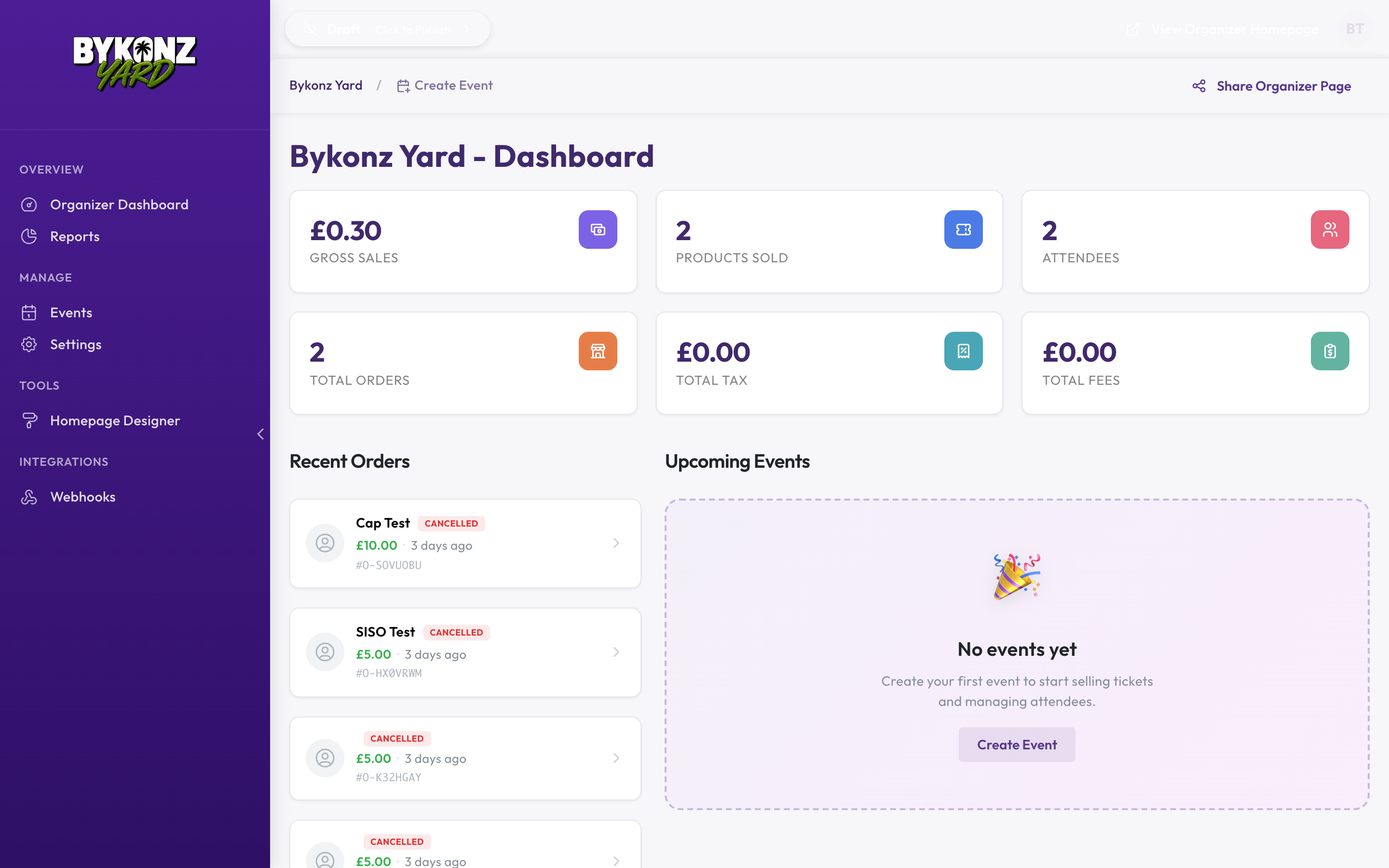
1The dashboard
Where you land after signing in. Sales, orders and your upcoming events at a glance.
2Making an event
Top of the dashboard → Create Event.
- Give it a name, date, time and venue.
- It starts as a Draft — only you can see it.
- Add your ticket types (next section).
- When you're happy, switch it from Draft to Live using the toggle at the top.
3Ticket types and prices
Open Events → pick your event → Tickets →
Tickets & Products in the left rail.
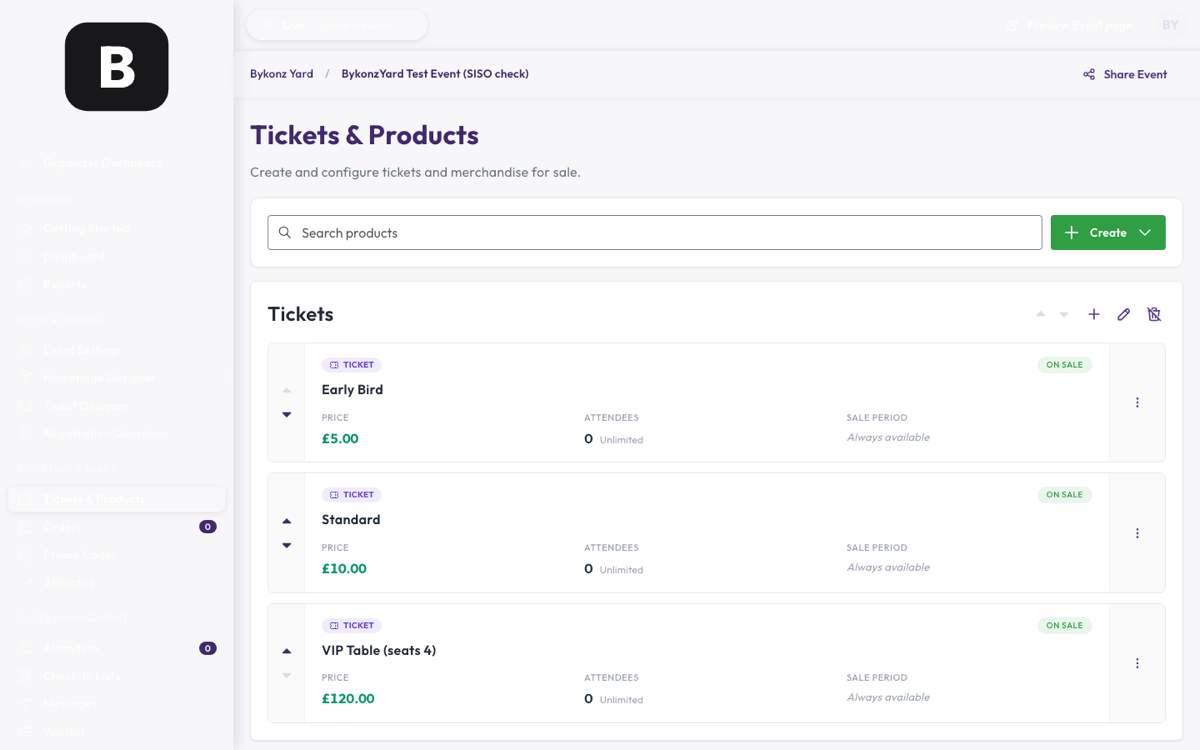
Hit Create for each type. For each one you set:
- Name — "Early Bird", "Standard", "VIP Table (seats 4)".
- Price — in pounds.
- How many — the cap. Once they sell out, it closes itself.
Tables and VIP work exactly the same way — they're just a ticket type with a higher price. Name it so people know what they're getting.
4Designing the ticket
Open Events → pick your event → Ticket Designer →
Ticket Designer in the left rail.
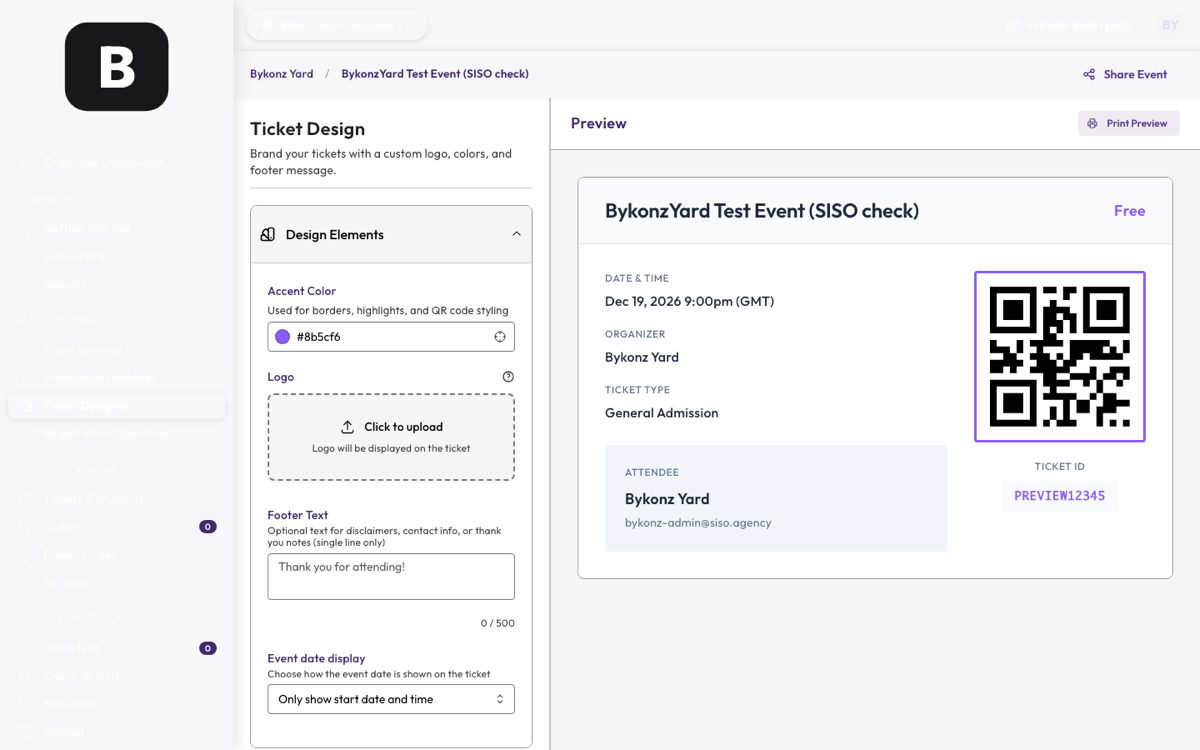
You control:
- Accent colour — borders, highlights and the QR styling. Currently set to BykonzYard purple.
- Logo — click to upload. Square works best, at least 200×200.
- Footer text — a thank-you line, or door info.
- Date display — start time only, a date range, or hidden.
Every ticket carries its own QR code and a unique ticket ID. Two people can't use the same ticket — each one scans once. Print Preview (top right) shows exactly what a printed or saved ticket looks like.
5Orders and guests
Open Events → pick your event → Orders →
Orders and Attendees in the left rail.
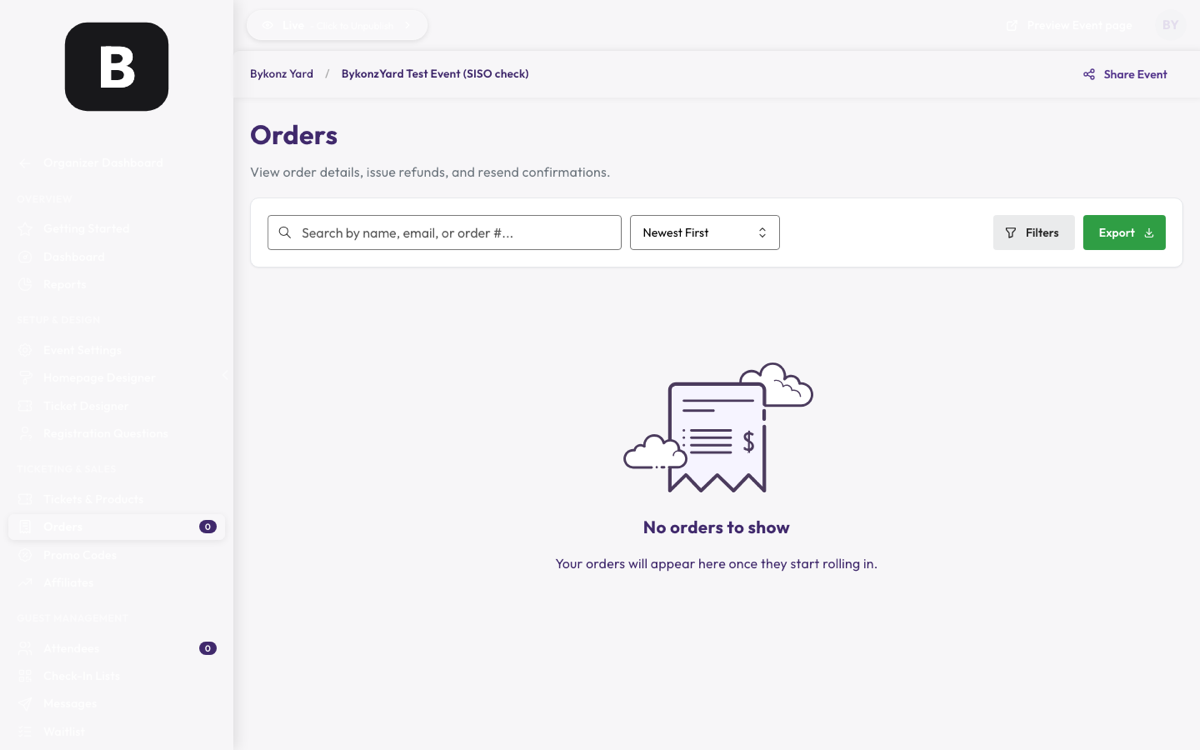
From here you can search for someone, resend their ticket, or cancel and refund an order.
6Discount codes
Open Events → pick your event → Promo Codes →
Promo Codes in the left rail.
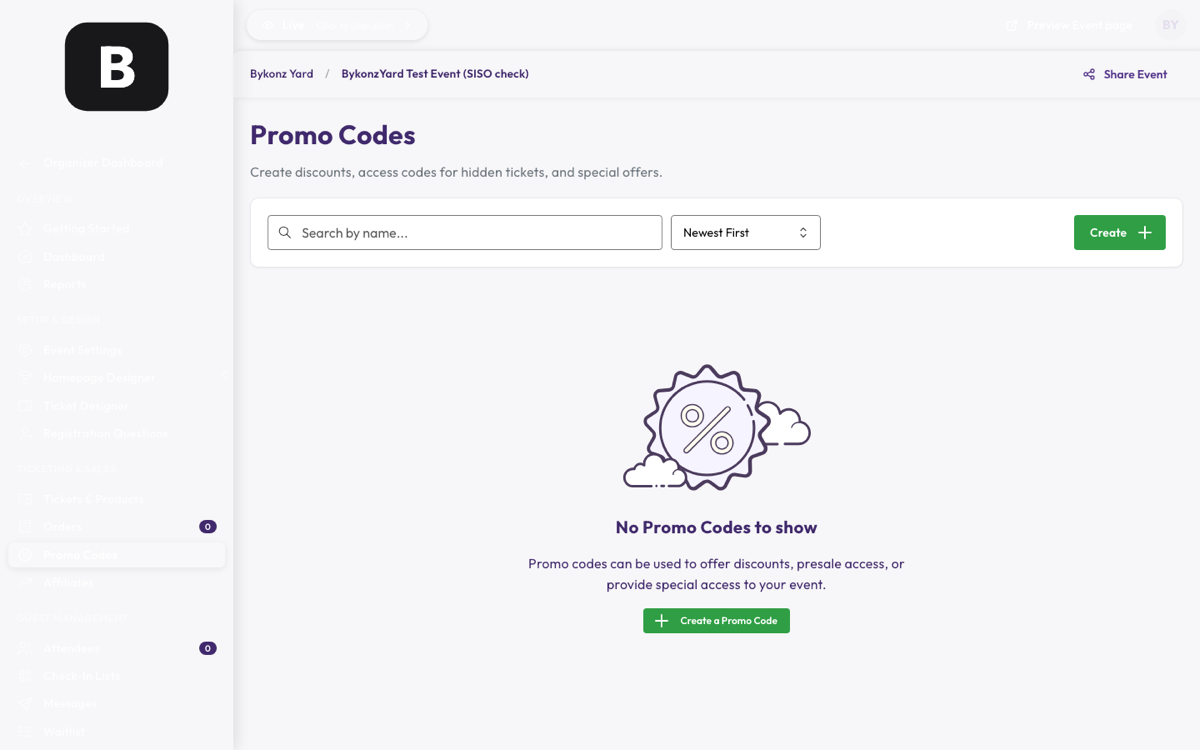
Each code can be a percentage or a fixed amount off, limited to a number of uses, and given an expiry date and time. Good for a "bring a friend" offer or a rep code.
7On the door
Open Events → pick your event → Check-In Lists →
Check-In Lists in the left rail.
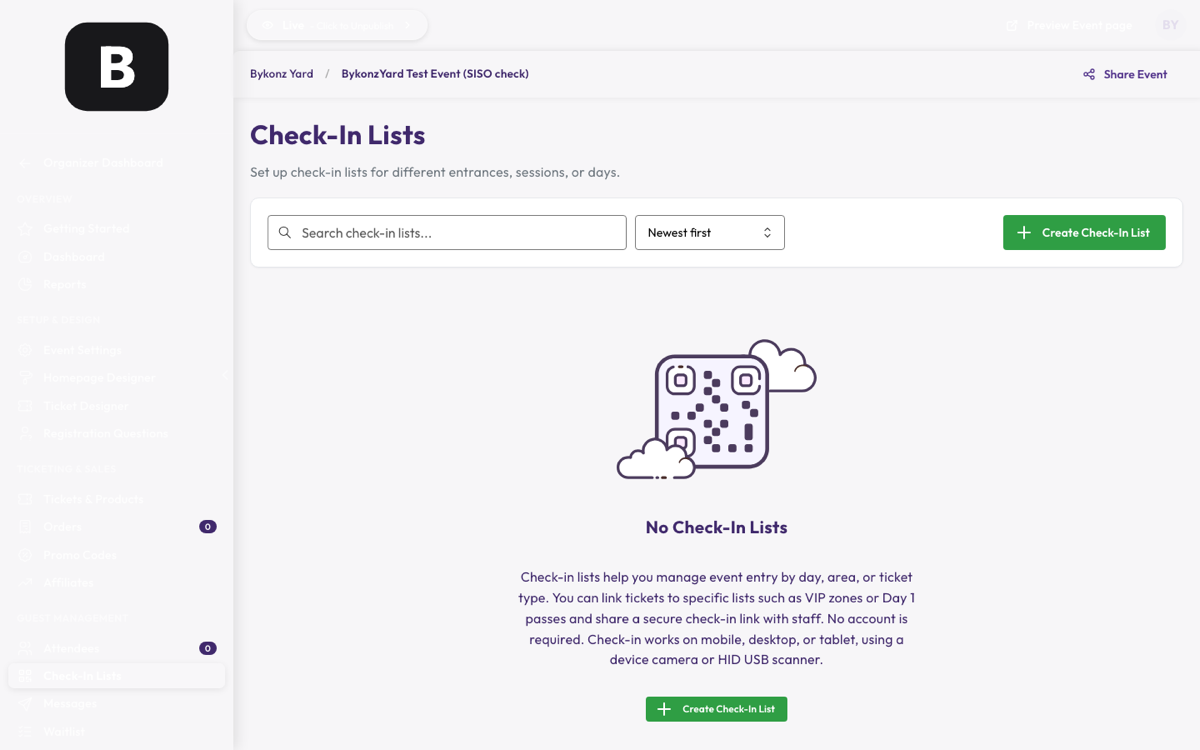
- Create a check-in list and choose which ticket types it covers (e.g. VIP only, or everything).
- Share the secure link with your door staff.
- They open it on a phone and scan each QR code with the camera.
Your staff don't need an account or a password — the link is enough. A ticket that's already been scanned will say so.
8Payments and emails
Card payments are live
Stripe is connected and money goes straight into the BykonzYard account. This has been tested with a real card — a live payment of £0.30 cleared on 28 August 2026.
Ticket confirmation emails send automatically the moment someone pays. Nothing to switch on.
9Your first real event — the 10 minute version
Do these in order and you are selling tickets.
- Sign in with the details at the top of this page.
- Create Event — name, real date, venue.
- Tickets & Products → add your tiers, e.g. Early Bird £5, Phase 1 £10, Phase 2 £15.
- Switch the event from Draft to Live.
- Buy one ticket yourself with a real card to see the whole thing work.
- Check the confirmation email lands, with the QR code on it.
- Refund yourself from Orders.
- Send us the event link and we will put it live on bykonzyard.co.uk.